

In our digital age, we’re constantly consuming vast amounts of information online from lengthy research articles and detailed product reviews to comprehensive tutorials and news stories. Have you ever found yourself endlessly scrolling through a 5,000-word article, desperately searching for that one specific piece of information you need? Or perhaps you’ve landed on a website with exactly the content you’re looking for, but you can’t locate the specific detail buried somewhere in the text?
This frustrating experience is universal, yet most people don’t realize that every modern browser whether on desktop, mobile, or tablet comes equipped with powerful search tools that can instantly locate any word or phrase on a webpage. These built-in features can transform how you navigate and consume online content, saving you precious time and reducing the eye strain that comes with manual scanning.
Platform-based ease of use comparison for searching words on web pages
The ability to efficiently search within web pages isn’t just a convenience, it’s an essential digital literacy skill that can dramatically improve your productivity, research capabilities, and overall browsing experience. Whether you’re a student conducting research, a professional fact-checking information, or simply someone who values efficiency, mastering these seven search methods will revolutionize how you interact with web content across all your devices.
1. Using Keyboard Shortcuts
Keyboard shortcuts represent the fastest and most universal method for searching text on web pages. This method works consistently across virtually all browsers and operating systems, making it the go-to technique for power users and casual browsers alike.
Step-by-Step Instructions:
Windows and Chromebook Users:
Open any webpage in your browser (Chrome, Edge, Firefox, etc.)
Press Ctrl+F simultaneously on your keyboard
Type your search term in the search box that appears (usually in the top-right corner)
Press Enter to jump to the next occurrence, or Shift+Enter to go to the previous one
Use F3 as an alternative to continue searching forward, or Shift+F3 to search backward
Press Escape or click the X to close the search box
Mac Users:
Open any webpage in Safari, Chrome, or Firefox
Press Cmd+F (Command+F) on your keyboard
Type your search term in the find bar that appears
Use the up/down arrows or press Cmd+G for next occurrence, Shift+Cmd+G for previous
Press Escape to close the search function

Chrome browser find/search box in use, highlighting the word ‘Soren’ on a web page thetechnicalgeekery
After years of web browsing, I’ve discovered that Ctrl+F (or Cmd+F on Mac) becomes second nature once you start using it regularly. The real game-changer is learning that you can search for partial words or phrases, you don’t need to type the exact complete word. For instance, searching “effic” will find “efficiency,” “efficient,” and “effectively.” This flexibility is particularly useful when you’re unsure of exact spellings or want to cast a wider search net.
2. Using Browser Menus
While keyboard shortcuts are faster, browser menus provide a visual, mouse-friendly alternative that’s especially helpful for users who prefer point-and-click navigation or are unfamiliar with keyboard shortcuts.
Step-by-Step Instructions:
Google Chrome:
Click the three vertical dots (⋮) in the top-right corner of your browser
Select “Find” from the dropdown menu (usually near the top)
Type your search term in the search box that appears
Use the up/down arrows in the search box to navigate through results
Click the X or press Escape to close
Microsoft Edge:
Click the three horizontal dots (…) in the top-right corner
Select “Find on page” from the menu
Enter your search term and navigate using the provided arrows
Firefox:
Click the hamburger menu (☰) in the top-right corner
Select “Find in This Page” or use the shortcut displayed
Alternative: Press the forward slash (/) for Firefox’s Quick Find feature
Safari:
Click “Edit” in the top menu bar
Select “Find” then “Find…”
Type your search term in the find bar that appears
I’ve found that browser menus are particularly valuable when teaching others how to search web pages, as the visual cues make the process more intuitive. Many users don’t realize that browsers also display the total count of matches (like “3 of 15”) in the search box, which gives you an immediate sense of how frequently your term appears on the page. This feature is especially useful when deciding whether a page contains substantial information on your topic of interest.
3. Searching for Words on an iPhone
Mobile searching presents unique challenges due to the absence of physical keyboards, but iPhones offer multiple intuitive methods for finding text within web pages, making information location just as efficient as on desktop.
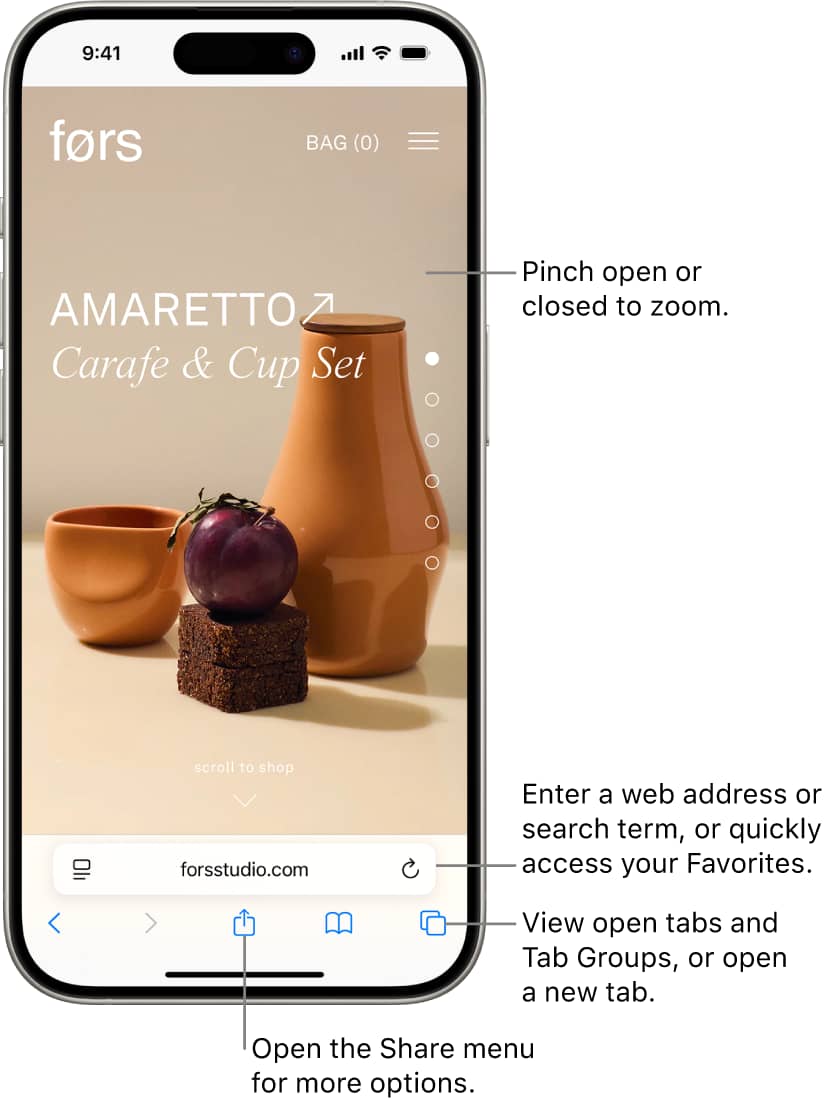
Safari browser interface on an iPhone with annotated instructions for navigation and interaction support.apple
Step-by-Step Instructions:
Method 1: Using Safari’s Address Bar
Open Safari and navigate to any webpage
Tap the address bar at the top of the screen
Type your search term (don’t press search yet)
Scroll down in the search suggestions until you see “On This Page”
Tap “Find [your search term]” under the “On This Page” section
Use the up/down arrows at the bottom to navigate between matches
Method 2: Using the Share Button
Open the webpage you want to search in Safari
Tap the Share button (square with upward arrow) at the bottom of the screen
Scroll down and tap “Find on Page”
Type your search term in the search field that appears
Navigate through results using the arrow buttons
Method 3: Using Chrome on iPhone
Open Chrome and go to your desired webpage
Tap the three dots (…) in the bottom-right corner
Select “Find in Page” from the menu
Enter your search term and use the navigation arrows
Having used iPhone Safari for years, I’ve discovered that the address bar method (Method 1) is often overlooked but incredibly efficient. What makes this particularly powerful is that it shows you the number of matches before you even start searching, helping you quickly assess if a page is worth exploring. Additionally, iPhone’s haptic feedback provides a subtle vibration when you reach the last search result, giving you a clear indication that you’ve reviewed all instances of your term.
4. Mobile Browsers (Android and iOS)
Mobile browsers across different platforms share similar search functionalities, but each has unique interface elements and shortcuts that can optimize your search experience on touchscreen devices.

Chrome browser on Android showing a Wikipedia article with a red arrow pointing to the menu icon for access to browser tools including find in page beebom
Step-by-Step Instructions:
Android Chrome:
Open Chrome on your Android device
Navigate to your desired webpage
Tap the three vertical dots (⋮) in the top-right corner
Select “Find in page” from the menu
Type your search term in the search bar that appears at the top
Use the up/down arrows to navigate through results
Tap “Done” when finished
Android Firefox:
Open Firefox on your Android device
Tap the three vertical dots in the top-right corner
Select “Find in page” from the dropdown menu
Enter your search term and navigate using the arrows
iOS Chrome (Alternative to Safari):
Open Chrome on your iPhone or iPad
Go to your webpage
Tap the three dots (…) in the bottom toolbar
Select “Find in Page…”
Type your search term and navigate with arrows
Through extensive testing across different mobile browsers, I’ve found that Android’s “Find in page” feature often provides more precise highlighting than some desktop counterparts, with search terms appearing in bright yellow or orange backgrounds that are easy to spot even on small screens. One lesser-known tip: on Android Chrome, you can actually see small yellow marks on the scroll bar indicating where your search terms appear on the page, this gives you a visual map of content distribution before you start navigating through results.
5. Using Browser Extensions or Add-ons
Browser extensions can significantly enhance your search capabilities beyond basic text finding, offering features like regular expression searches, multi-word highlighting, and advanced filtering options that aren’t available in standard browser tools.
Step-by-Step Instructions:
Installing and Using Find+ Extension:
Open your browser (Chrome, Firefox, or Edge)
Visit your browser’s extension store (Chrome Web Store, Firefox Add-ons, etc.)
Search for “Find+” or similar search extensions
Click “Add to browser” and confirm installation
After installation, press Ctrl+Shift+F (or your custom shortcut)
Use advanced features like:
Regular expression searches
Case-sensitive matching
Whole word searches only
Replace functionality
Multi Find Extension Setup:
Install Multi Find from your browser’s extension store
Click the extension icon in your toolbar
Enter multiple search terms separated by commas or line breaks
Choose different highlight colors for each term
View occurrence counts for each searched word
Setting Up Custom Shortcuts:
Go to your browser’s extensions page (chrome://extensions/ for Chrome)
Click “Keyboard shortcuts” in the menu
Assign custom key combinations to your search extensions
Test your shortcuts on various websites
After experimenting with numerous search extensions, I’ve found that Multi Find is particularly valuable for research-heavy tasks. Being able to simultaneously highlight multiple related terms in different colors transforms how you process information, for example, highlighting “benefits” in green, “drawbacks” in red, and “costs” in blue while reading product reviews gives you an instant visual overview of key information categories. The extension’s ability to show occurrence counts for each term also helps you quickly gauge the depth of coverage for different aspects of a topic.
6. Using Google Search for Site-Specific Words
When you need to find specific information across an entire website rather than just a single page, Google’s site search operators provide a powerful way to locate content that might not be easily accessible through internal site navigation.
Step-by-Step Instructions:
Basic Site Search:
Open Google in your browser
Type “site:example.com” (replace with your target website)
Add your search terms after the site operator
Example:
site:wikipedia.org artificial intelligence ethicsPress Enter to see results only from that specific site
Advanced Site Search Techniques:
Search specific sections:
site:reddit.com/r/technology "smartphone battery"Exclude certain terms:
site:amazon.com laptop -gamingFind specific file types:
site:example.com filetype:pdf climate changeSearch by date range:
site:news.com "vaccine" after:2023-01-01
Setting Up Chrome Search Shortcuts:
Open Chrome Settings (chrome://settings/)
Go to “Search engine” → “Manage search engines and site search”
Scroll to “Site search” and click “Add”
Fill in:
Search engine: Website name
Shortcut: Your chosen abbreviation (e.g., “wiki”)
URL:
https://site.com/search?q=%s
Save and test by typing your shortcut + Tab in the address bar
I’ve been using site-specific Google searches for over a decade, and it’s revolutionized how I research topics. The real power comes from combining operators for instance, site:stackoverflow.com "python" "machine learning" -"beginner" helps me find advanced Python ML discussions while filtering out basic tutorials. What many people don’t realize is that you can also use wildcards and partial domain matching, like site:*.edu "climate change research" to search across all educational institutions simultaneously. This technique is invaluable for academic research and fact-checking.
7. Using Inspect Element for Advanced Search
Browser developer tools offer the most comprehensive search capabilities, allowing you to search through HTML code, CSS styles, JavaScript files, and even network requests, perfect for developers, designers, and power users who need to find specific technical elements or deeply buried content.
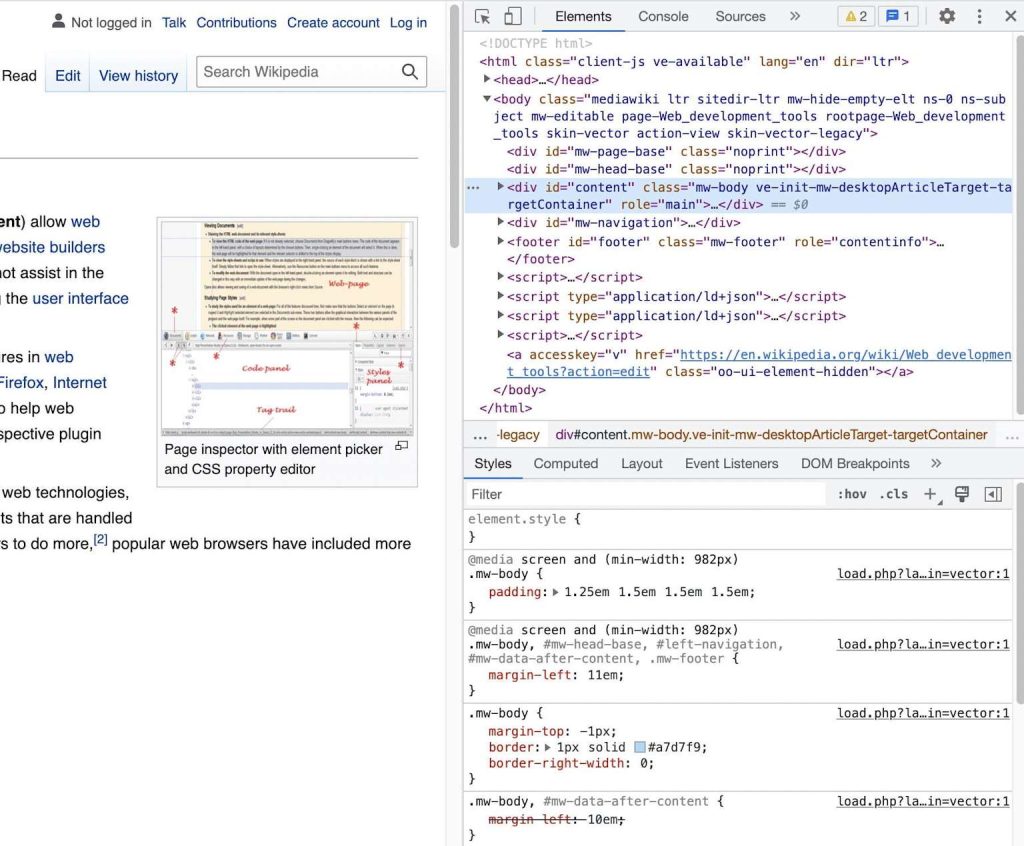
Screenshot demonstrating the use of browser developer tools (Inspect Element) to examine and search content within a web page’s HTML and CSS structure ionos
Step-by-Step Instructions:
Opening Developer Tools:
Right-click anywhere on a webpage
Select “Inspect” from the context menu
Alternative shortcuts:
Windows/Linux: Ctrl+Shift+I
Mac: Cmd+Option+I
Using the Elements Search:
With DevTools open, press Ctrl+F (Cmd+F on Mac)
Type your search term in the search box that appears at the bottom
Navigate through matches in the HTML code
Click any result to jump to that element in the code
Advanced Search Panel:
Open DevTools using the methods above
Press Ctrl+Shift+F (Cmd+Option+F on Mac) to open the global search
Search across all resources:
HTML content
CSS stylesheets
JavaScript files
Network responses
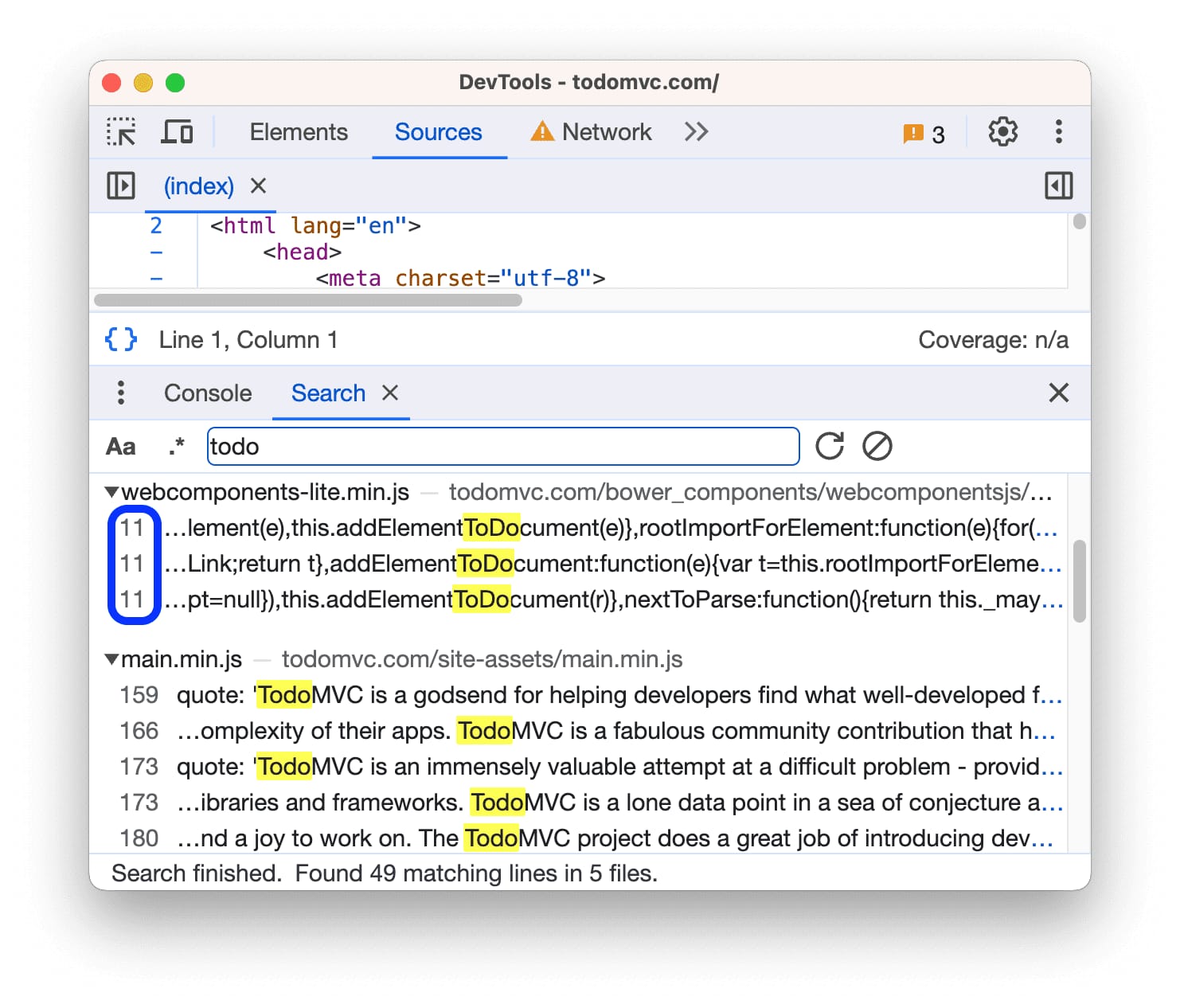
Using Chrome DevTools to search for specific words across all loaded website resources developer.chrome
Searching by CSS Properties:
In the search box, type CSS values like color codes (#ff0000)
Search for class names or IDs to find styling rules
Locate specific fonts by searching for font-family declarations2728
Inspect Element searching has saved me countless hours in web development and competitive analysis. One of my favorite techniques is searching for specific error messages or status codes that might not be visible on the page surface, this often reveals hidden functionality or troubleshooting information. For content creators and marketers, searching for terms like “schema,” “meta,” or “og:” can quickly reveal how competitors structure their SEO and social media optimization. The global search feature is particularly powerful because it can find text that’s dynamically loaded by JavaScript, which regular page searches might miss.
Conclusion
Mastering these seven search methods transforms you from a passive consumer of web content into an efficient information hunter. Each technique serves different scenarios: keyboard shortcuts for quick daily browsing, mobile methods for on-the-go research, extensions for power users, site search for comprehensive investigation, and developer tools for technical analysis.
The key to becoming proficient is understanding that different situations call for different approaches. Use Ctrl+F for quick fact-checking, employ mobile techniques when researching on your phone, leverage Google site search for comprehensive topic research, and turn to developer tools when you need to dig deeper than surface content.
What makes these skills particularly valuable is their universal applicability, whether you’re a student researching for papers, a professional fact-checking information, a developer debugging code, or simply someone who wants to navigate the web more efficiently, these tools are always at your fingertips.
Start by practicing the basic keyboard shortcuts until they become muscle memory, then gradually incorporate the more advanced techniques as your needs evolve. The time investment in learning these methods pays dividends in productivity, accuracy, and reduced frustration when dealing with information-dense websites.
Remember, the web contains virtually unlimited information, but without the right search techniques, finding specific details can feel like searching for a needle in a haystack. With these seven methods in your toolkit, you’ll never again find yourself endlessly scrolling through lengthy pages hoping to stumble upon the information you need. Instead, you’ll locate exactly what you’re looking for in seconds, regardless of the device or browser you’re using.

